
Screen Configuration of Wireless Device Parameter Setup Tool
Startup Screen
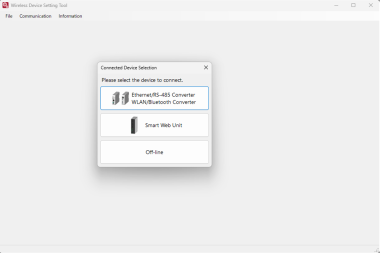
When this tool is started, the main screen is displayed and a connected device selection window appears.
Select the device and establish communication with the device for which you want to configure parameters.
Select the device and establish communication with the device for which you want to configure parameters.
Main Screen Function Overview
Each menu can be selected from the toolbar on the main screen.
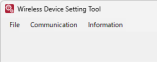
Menu Name | Overview |
|---|---|
File | Execute operations related to parameter files |
Communication | Execute operations related to communication with devices |
Information | Execute operations related to application and connected device information |
- File menu
In addition to opening and saving parameter files, this tool can also exit.

Options | Overview |
|---|---|
Open | Open a parameter file |
Save | Save a parameter file |
Exit | Exit the application |
- Communication menu
Connecting to / disconnecting from the target device and configuration of communication settings can be performed.
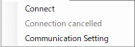
Options | Overview |
|---|---|
Connection | Establish communication with the target device |
Disconnect | Disconnect communication with the connected device |
Communication Settings | Configure communication settings |
- Information menu
Display of application information of this tool and information of the connected device, as well as configuration of application settings can be performed.
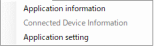
Options | Overview |
|---|---|
Application Information | Display application information |
Device Information | Display information of the connected device |
Application Settings | Configure application settings |
Smart Web Unit Connection
In the connected device selection window, after selecting the Smart Web Unit and establishing communication with it, the main screen will be displayed.
- USB Connection
When communication is established via USB, the following main screen is displayed.
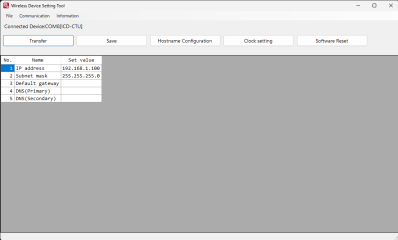
This section shows the names and overview of each part when the Smart Web Unit is connected (via USB).
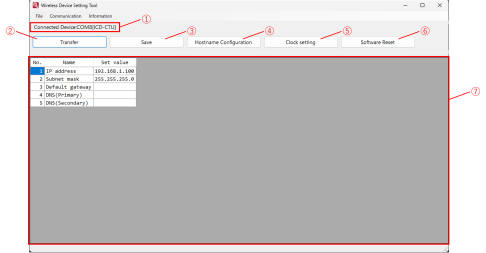
No. | Name | Overview |
|---|---|---|
① | Connected Device Information | Displays the following information. • Connection port name • Model |
② | Transfer button | Transfer parameters |
③ | Save button | Save parameters |
④ | Host Name Settings | Set the hostname of the Smart Web Unit. |
⑤ | Time Setting | Set the time of the Smart Web Unit. |
⑥ | Software Reset | Perform a software reset of the Smart Web Unit. |
⑦ | Parameter Display Area | Display the parameter list. |
- Ethernet Connection
When communication is established via Ethernet, the following main screen is displayed.
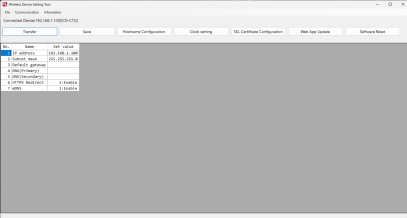
This section shows the names and overview of each part when the Smart Web Unit is connected (via Ethernet).
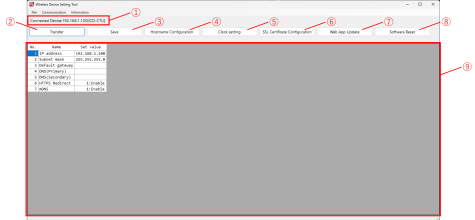
No. | Name | Overview |
|---|---|---|
① | Connected Device Information | Displays the following information. • Connection port name • Model |
② | Transfer button | Transfer parameters |
③ | Save button | Save parameters |
④ | Host Name Settings | Set the hostname of the Smart Web Unit. |
⑤ | Time Setting | Set the time of the Smart Web Unit. |
⑥ | SSL Certificate Settings Button | Register an SSL certificate on the Smart Web Unit. You can either issue a self-signed certificate or register a prepared certificate. |
⑦ | Web App Update Button | Updates the web application. |
⑧ | Software Reset | Perform a software reset of the Smart Web Unit. |
⑨ | Parameter Display Area | Display the parameter list. |
Ethernet/RS-485 Converter
In the connected device selection window, after selecting the Ethernet/RS-485 Converter and establishing communication with it, the main screen will be displayed.
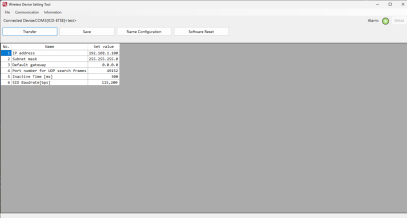
This section shows the names and overview of each part of the main screen when the Ethernet/RS-485 converter is connected.
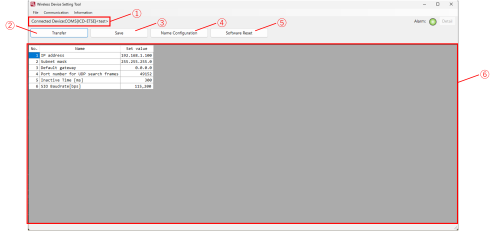
No. | Name | Overview |
|---|---|---|
① | Connected Device Information | Displays the following information about the connected device. • USB connection: Communication port, model • Ethernet connection: Communication port name, model, User-defined name |
② | Transfer button | Transfer parameters |
③ | Save button | Save parameters |
④ | Name Settings | Set a user-defined name. |
⑤ | Software Reset | Perform a software reset |
⑥ | Parameter Display Area | Display the parameter list. |
WLAN/Bluetooth Converter
In the connected device selection window, after selecting the WLAN/Bluetooth Converter and establishing communication with it, the main screen will be displayed.
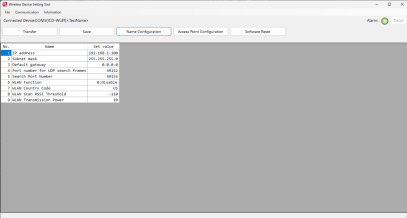
This section shows the names and overview of each part of the main screen when the WLAN/Bluetooth converter is connected.
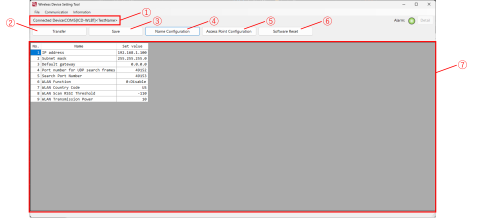
No. | Name | Overview |
|---|---|---|
① | Connected Device Information | Displays the following information about the connected device. • USB connection: Communication port, model • Ethernet connection: Communication port name, model, User-defined name |
② | Transfer button | Transfer parameters |
③ | Save button | Save parameters |
④ | Name Setting button | Set a user-defined name. |
⑤ | Access Point Setting button | Register WLAN access point information. |
⑥ | Software Reset button | Perform a software reset |
⑦ | Parameter Display Area | Display the parameter list. |