
Other
Application Settings
This is the screen for configuring web application settings.
Only communication-related settings with the controller can be configured.
Only communication-related settings with the controller can be configured.
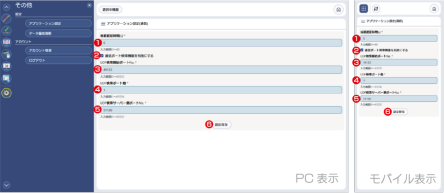
Figure 8.18 Application Settings, Communication Port Search Function Enabled
- Connection Delay Time [s]
Sets the delay time from when the Smart Web Unit is started and the Web application begins running until communication with the controller starts. The unit is “seconds”. - Communication Port Search Function Enable/Disable Switch
Switches the communication port search function enable/disable.
- If enabled
IAI controllers connected to the same network are automatically detected and displayed as selectable target devices. - If disabled
Only controllers with specified IP addresses are displayed as selectable target devices.
- Number of UDP Search Ports
The number of ports used for UDP search can be specified.
The setting range is 1 to 65,535. - UDP Search Server-side Port No.
The server-side port number for UDP search can be specified.
The setting range is 0 to 65,535. - Save Settings Button
Press it to save the application settings.
After changing the application settings, the changes will not be saved unless this button is pressed.
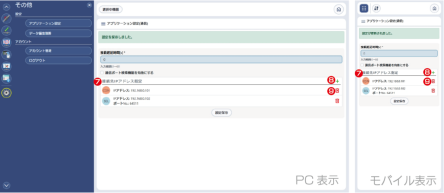
Figure 8.19 Application Settings, Communication Port Search Function Disabled
- Specified IP Address Display Area
This is the area that displays the IP addresses configured as connection targets. - Add Connection Destination IP Address Button
Press it to display the IP address settings screen shown in Figure 8.19, where you can add a destination IP address.
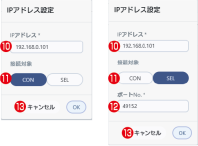
Figure 8.20 IP Address Settings
- Delete Button
Press it to delete the registered destination IP address shown in the corresponding row. - IP Address
Enter the IP address of the connection destination. - Connection Target
Select the type of connection target.
The item highlighted in dark blue indicates the currently selected type. - Poart No.
If the connection target is SEL, set the port number according to the controller configuration. - OK/Cancel Button
To register the entered information as a connection destination, press the [OK] button. To cancel registration, press the [Cancel] button.
Data Editing Restrictions (Authorization Settings)
This is the screen for configuring data editing restrictions (authorization settings) for each user.
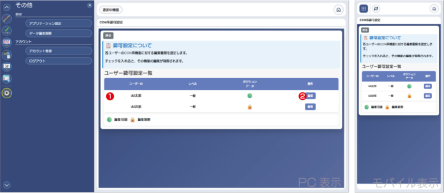
- Display Part
This is the area that displays the editing restriction (authorization settings) for each user.
It shows whether each user is allowed to edit each data type (in the initial version, only position data).
The legend is as follows.
 | Editing Restrictions (Non-editable) |
 | Editable |
- Edit Button
Press it to switch the authorization settings for the corresponding row to the edit mode.
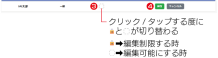
- Authorization Settings Edit Field
Click or tap here to modify the authorization settings. - Save/Cancel Button
Press the [Save] button to save the changes, or press the [Cancel] button to discard them.
Account Management
These are functions such as account management.
Each function can be used by pressing the corresponding button on the Account Management Home screen.
Each function can be used by pressing the corresponding button on the Account Management Home screen.
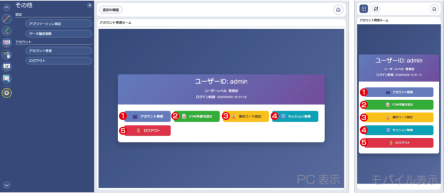
Figure 8.21 Account Management Home
- Account Management
For details, refer to Other > Account Management > Account Management . - CON System Authorization Settings
For details, refer to Other > Data Editing Restrictions (Authorization Settings) . - Recovery Code Settings
For details, refer to Other > Account Management > Recovery Code Settings . - Session Information
For details, refer to Other > Account Management > Session Information . - Log Out
For details, refer to Other > Log Out .
Account Management
This is the screen for managing accounts.
You can add users, change passwords, and enable/disable or delete accounts.
You can add users, change passwords, and enable/disable or delete accounts.
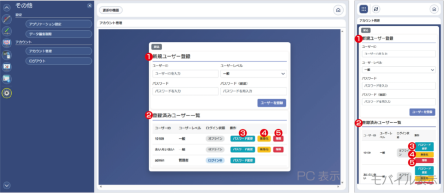
- New User Registration Section
This section is used to add new users.
After entering all required information, press the [Register User] button to complete registration. - Registered User List
Displays a list of registered users.
From here, you can change passwords, enable/disable accounts, or delete users. - Change Password Button
Use it when changing a user’s password.
Pressing this button opens a screen to enter a new password for the user in the corresponding row.
The display of this button changes depending on whether the user is enabled or disabled.
When the user is enabled |  |
When the user is disabled |  |
- Enable/Disable Switch
Switches the user between enabled and disabled states.
Disabled users cannot log in to the web application.
The display of this button changes depending on whether the user is enabled or disabled.
When the user is enabled |  |
When the user is disabled |  |
- Delete
It is used to delete a user.
Pressing this button deletes the user in the corresponding row.
Be aware that deleted users cannot be restored.
The display of this button changes depending on whether the user is enabled or disabled.
When the user is enabled |  |
When the user is disabled |  |
Recovery Code Settings
This is the screen for setting a special code used to create a new administrator account when the administrator account information is unknown.
Within the policy, the user can set an arbitrary code.
Within the policy, the user can set an arbitrary code.
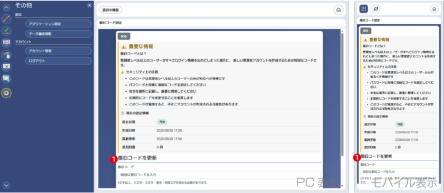
- Recovery Code Update Section
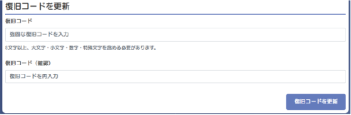
It is used to update the recovery code.
Enter the desired code in both the “Recovery Code” field and the “Recovery Code (Confirmation)” field, then press the [Update Recovery Code] button to apply the changes.
Session Information
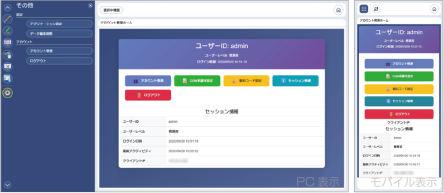
This is the screen that displays connection information for clients currently connected to the web application.
Log Out
This function logs out from the web application by clearing user authentication.
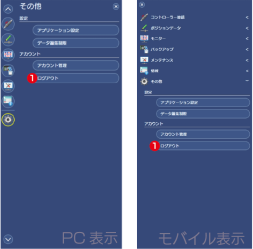
- Log Out Button
Press it to log out from the web application.