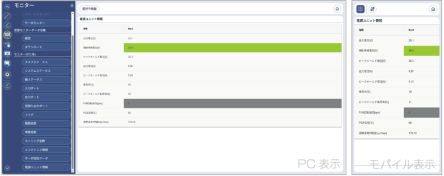
Monitor
All Axes Monitor
This is the screen for monitoring all connected axes simultaneously.
On a PC, information for all monitored axes is displayed on a single screen, while on mobile devices, one axis is displayed per screen.
On a PC, information for all monitored axes is displayed on a single screen, while on mobile devices, one axis is displayed per screen.
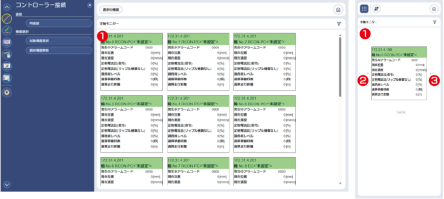
- Monitor Display Part
Displays information for each monitored axis. - Axis Switch Button (Previous Axis) (Mobile devices only)
Use it to switch the displayed monitoring information to the previous axis.
You can also switch by flicking the screen to the left. - Axis Switch Button (Next Axis) (Mobile devices only)
Use it to switch the displayed monitoring information to the next axis.
You can also switch by flicking the screen to the right.
Control Device Communication Monitor
This is the monitoring screen for communication-related information.
I/O Data Monitor
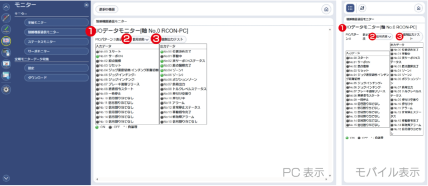
- Monitor Data Display Part
It is an area where monitor data is displayed. - Display Method Selection
It is used to switch how signal names are displayed.
Options are “Signal Name” and “Signal Abbreviation”. - Forced Output Test Button
Press it to perform a forced I/O output test.
Network Data Monitor
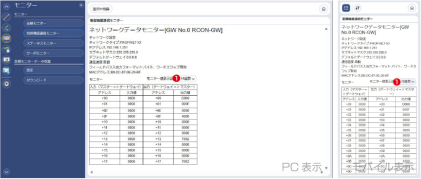
- Monitor Value Display Setting
Allows switching the display format of monitor data output and input values between decimal and hexadecimal.
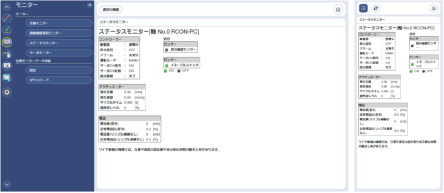
Status Monitor
This is the screen for displaying axis status.
Servo Monitor
Display Data Selection
This is the screen for selecting the data to be displayed on the servo monitor screen.
You can choose whether to acquire monitor data from the controller or display a previously saved servo monitor file.
You can choose whether to acquire monitor data from the controller or display a previously saved servo monitor file.
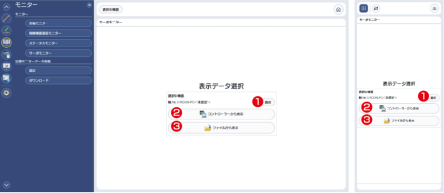
- Select Button
Press it to select the controller from which monitor data will be acquired. - Display from Controller Button
Press it to acquire monitor data from the controller. - Display from File Button
Press it to open and display a previously saved servo monitor file.
Execute Servo Monitor
This is the screen for executing the servo monitor.
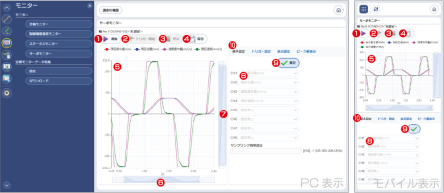
- Start Button
Press it to start the servo monitor. - Trigger Start Button
Press it to start waiting for the servo monitor trigger. - Stop Button
Press it to stop the servo monitor. - Save Button
Press it to save the acquired servo monitor data to a file. - Graph Display Part
Displays the results of the servo monitor in graph form. - Horizontal Scroll Bar
It is used to scroll the graph horizontally and to zoom in/out of the horizontal axis display range.
Move the bars on both sides of the dark blue area to adjust the display range.
Drag the dark blue area to scroll.

- Vertical Scroll Bar
It is used to scroll the graph vertically and to zoom in/out of the vertical axis display range.
Move the bars above and below the dark blue area to adjust the display range.
Drag the dark blue area to scroll.

- Channel Settings (Data Type Selection)
It is used to assign a data type to each channel.
After editing, press the confirm button in item 9 to apply the changes. - Confirmed Button
Press it to confirm the channel settings. - Settings Switching Tab
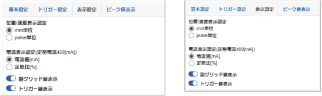
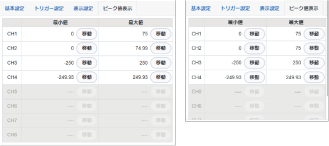
It is used to switch between Basic Settings, Trigger Settings, Display Settings, and Peak Value Display.
Details for tabs other than the Basic Settings tab are as follows.
Trigger Settings
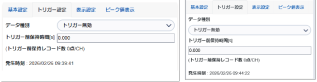
Display Settings
Peak Value Display
Periodic Monitor Data Collection Settings
This is the screen for configuring settings such as the storage location and collection interval for the periodic monitor data collection function.
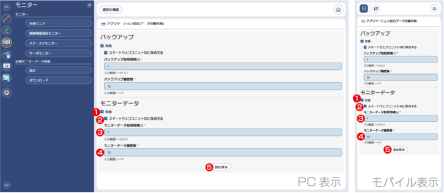
Figure 8.11 Periodic Monitor Data Collection Settings, Saved in Smart Web Unit
- Enable/Disable Periodic Monitor Data Collection
Switches periodic monitor data collection enable/disable. - Switch Save Destination
Switches whether the collected data is stored in the Smart Web Unit or in external storage. - Monitor Data Acquisition Interval [h]
Sets the interval (cycle) for data collection. The unit is “hours”.
It can be set within the range of 1 to 65,535. - Number of Monitor Data History Entries
Sets the number of collected data generations to be stored.
Up to 1,000 files can be saved. - Save Settings Button
Press it to save the settings.
Note that changes to items 1 to 4 will not be applied unless the [Save Settings] button is pressed.
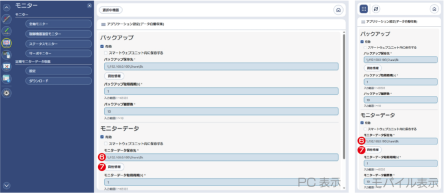
Figure 8.12 Periodic Monitor Data Collection Settings, Saved to External Storage
- Monitor Data Storage Location
It is an item displayed only when the checkbox in item 2 is off.
Sets the path of the external storage where monitor data will be saved. - Credentials Button
It is an item displayed only when the checkbox in item 2 is off.
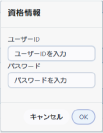
Displays the screen for registering credentials (user account information) required to connect to the external storage where monitor data will be saved.
Download Regular Monitoring Data
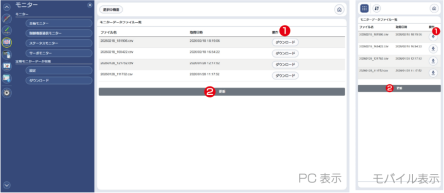
- Operation Column (Download button)
By pressing the [Download] button, you can download the periodic monitor data displayed in the same row. - Update Button
Press it to refresh the list of monitor data files.
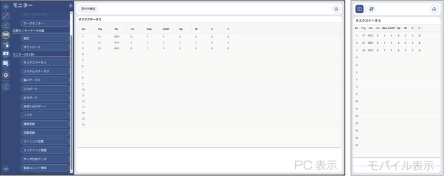
Task Status Monitor (SEL)
This is a screen for monitoring the task status of SEL series controllers.
* The button to open this screen in the menu is enabled only after selecting the target controller in Communication > Target Device Selection beforehand.
* The button to open this screen in the menu is enabled only after selecting the target controller in Communication > Target Device Selection beforehand.
System Status Monitor (SEL)
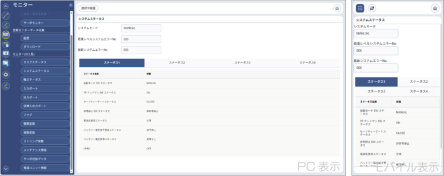
This is a screen for monitoring the system status of SEL series controllers.
* The button to open this screen in the menu is enabled only after selecting the target controller in Communication > Target Device Selection beforehand.
* The button to open this screen in the menu is enabled only after selecting the target controller in Communication > Target Device Selection beforehand.
Axis Status Monitor
This is a screen for monitoring the axis status of SEL series controllers.
* The button to open this screen in the menu is enabled only after selecting the target controller in Communication > Target Device Selection beforehand.
* The button to open this screen in the menu is enabled only after selecting the target controller in Communication > Target Device Selection beforehand.
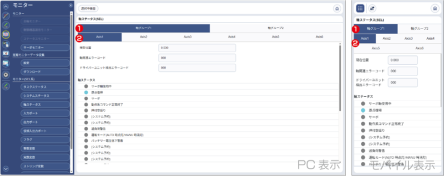
- Axis Group Tab
Allows switching between displayed axis groups. - Axis Number Tab
Allows switching between displayed axis number.
Input Port Monitor (SEL)
This is a screen for monitoring the input port of SEL series controllers.
* The button to open this screen in the menu is enabled only after selecting the target controller in Communication > Target Device Selection beforehand.
* The button to open this screen in the menu is enabled only after selecting the target controller in Communication > Target Device Selection beforehand.
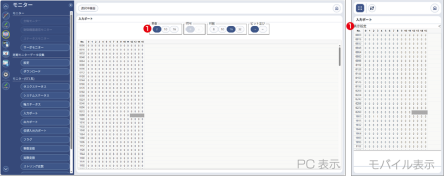
- Display Settings
Changes display settings such as number base and bit order.
Output Port Monitor (SEL)
This is a screen for monitoring the output port of SEL series controllers.
* The button to open this screen in the menu is enabled only after selecting the target controller in Communication > Target Device Selection beforehand.
* The button to open this screen in the menu is enabled only after selecting the target controller in Communication > Target Device Selection beforehand.
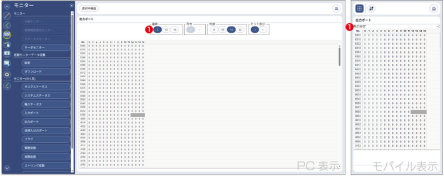
- Display Settings
Changes display settings such as number base and bit order.
Virtual I/O Port Monitor (SEL)
This is a screen for monitoring the virtual I/O port of SEL series controllers.
* The button to open this screen in the menu is enabled only after selecting the target controller in Communication > Target Device Selection beforehand.
* The button to open this screen in the menu is enabled only after selecting the target controller in Communication > Target Device Selection beforehand.
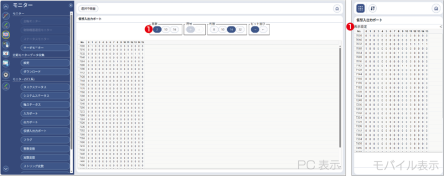
- Display Settings
Changes display settings such as number base and bit order.
Flag Monitor (SEL)
This is a screen for monitoring the flag of SEL series controllers.
* The button to open this screen in the menu is enabled only after selecting the target controller in Communication > Target Device Selection beforehand.
* The button to open this screen in the menu is enabled only after selecting the target controller in Communication > Target Device Selection beforehand.
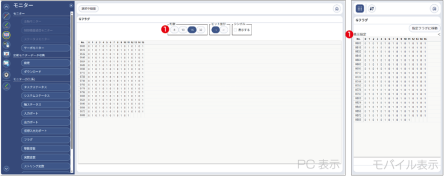
- Display Settings
Changes display settings such as number base and bit order.
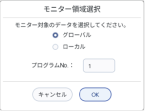
Before opening the screen, the monitor area selection screen shown below will be displayed. Select the area you want to display and press the [OK] button.
Integer Variable Monitor (SEL)
This is a screen for monitoring the integer variable of SEL series controllers.
* The button to open this screen in the menu is enabled only after selecting the target controller in Communication > Target Device Selection beforehand.
* The button to open this screen in the menu is enabled only after selecting the target controller in Communication > Target Device Selection beforehand.
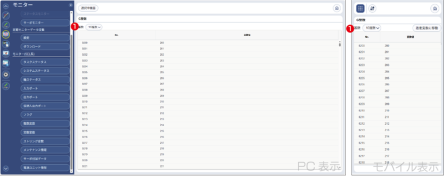
- Base Number Settings
The number base can be changed.
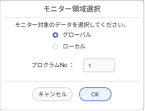
Before opening the screen, the monitor area selection screen shown below will be displayed. Select the area you want to display and press the [OK] button.
Real Number Variable Monitor (SEL)
This is a screen for monitoring the real number variable of SEL series controllers.
* The button to open this screen in the menu is enabled only after selecting the target controller in Communication > Target Device Selection beforehand.
* The button to open this screen in the menu is enabled only after selecting the target controller in Communication > Target Device Selection beforehand.
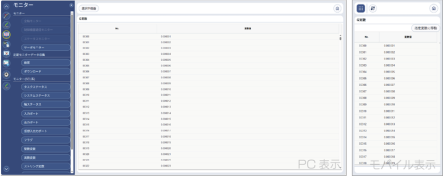
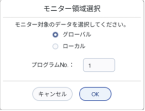
Before opening the screen, the monitor area selection screen shown below will be displayed. Select the area you want to display and press the [OK] button.
String Variable Monitor (SEL)
This is a screen for monitoring the string variable of SEL series controllers.
* The button to open this screen in the menu is enabled only after selecting the target controller in Communication > Target Device Selection beforehand.
* The button to open this screen in the menu is enabled only after selecting the target controller in Communication > Target Device Selection beforehand.
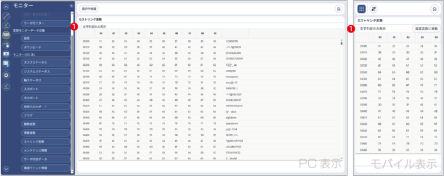
- Show Text Only
Put a checkmark here, and only the text portion is displayed.
Before opening the screen, the monitor area selection screen shown below will be displayed. Select the area you want to display and press the [OK] button.
Servo Additional Data Monitor (SEL)
This is a screen for monitoring the servo additional data of SEL series controllers.
* The button to open this screen in the menu is enabled only after selecting the target controller in Communication > Target Device Selection beforehand.
* The button to open this screen in the menu is enabled only after selecting the target controller in Communication > Target Device Selection beforehand.
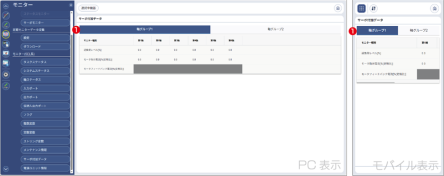
- Axis Group Tab
Allows switching between displayed axis groups.
Power Supply Unit Information (SEL)
This is a screen for monitoring the power supply unit information of SEL series controllers.
* The button to open this screen in the menu is enabled only after selecting the target controller in Communication > Target Device Selection beforehand.
* The button to open this screen in the menu is enabled only after selecting the target controller in Communication > Target Device Selection beforehand.