
Position data
View/Edit Position Data (CON series)
This section describes the functions and screens related to position data for the CON series.
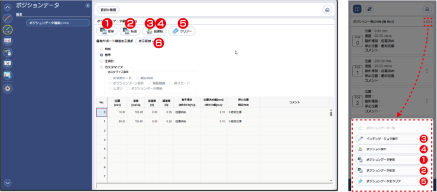
- Update
Press it, and then the currently set position data in the controller is retrieved and reflected in the list. - Transfer
Transfers the position data set in the web application to the controller. - Test Run (Jog/Inching Operation)
Switches to the test operation screen where jog and inching operations can be performed.
* For PC, items 3 and 4 are displayed on the same screen. - Test Run (Position Operation)
Switches to the test operation screen where position movement can be performed. * For PC, items 3 and 4 are displayed on the same screen. - Clear
Deletes (clears) all position data. - Display Switch
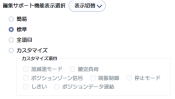
Switches the display. The available options are as follows.

Display switch
Switches the display below the corresponding combo box as follows.
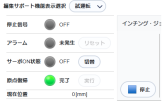
Test run
Switches the display below the corresponding combo box as follows.
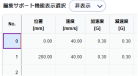
Not displayed
Switches the display below the corresponding combo box as follows.
Position List
This is the screen for displaying the list of position data.
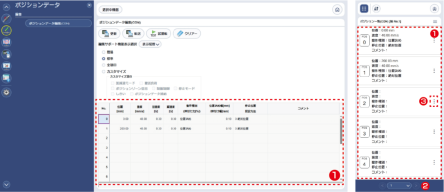
- Position Data Display Part
Displays the position data stored in the controller. On a PC, the position data can be edited directly from this grid. - Pager (Mobile devices only)
If the number of position data items is large, use this control to switch pages. - Edit Menu (Mobile devices only)
This is a button for opening a menu dedicated to mobile devices.
As shown in the figure below, functions related to editing—such as a button to navigate to the position data editing screen—are displayed.

Edit Position
This is the screen for displaying the list of position data.
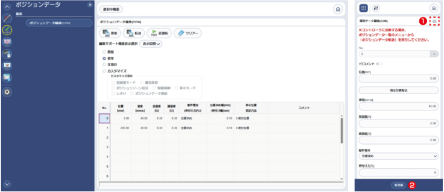
* On a PC, this is the same screen as the list. (editing can be performed directly from the list screen)
- Position Menu (Mobile devices only)
When pressed, operation buttons such as the position data list are displayed as shown in the figure below.
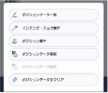
- Temporary Registration Button
Press it, and the edited content is temporarily registered.
Pressing this button alone does not transfer the data to the controller. To apply the changes to the controller, execute “Transfer Position Data” from the menu in the position data list.
Position Operation
This is the screen for operating axes, such as jog, inching, and position movement.
To switch between the jog/inching screen and the position movement screen,
To switch between the jog/inching screen and the position movement screen,
- For mobile devices: from the position menu
- For PC: from the tabs near the center of the screen
Please go.
• Jog-inching screen
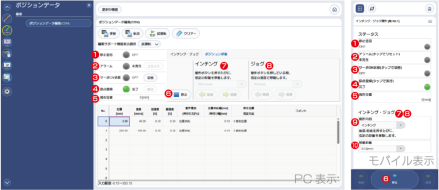
Figure 8.9 Jog-inching screen
- Stop Signal
Displays the status of the stop signal. - Alarm
Displays the currently active alarm.
Press the [Reset] button if on a PC, tap this area if on a mobile device, to reset the alarm. - Servo-on Status
Displays the ON/OFF status of the servo.
Press the [Switch] button if on a PC, tap this area if on a mobile device, to switch the servo on/off. - Homing
Displays the home return status.
Press the [Execute] button if on a PC, tap this area if on a mobile device, to perform home return. - Current Position
Displays the current position. - Stop Button
Stops the operation of the actuator. - Inching Area
Allows inching operation based on the set inching distance.
On mobile devices, the forward and backward buttons are displayed at the bottom of the screen.
* On mobile devices, items 7 and 8 are displayed in a common area depending on the settings in item 9. - Jog Area
Allows jog operation based on the set jog operation.
On mobile devices, the forward and backward buttons are displayed at the bottom of the screen.
* On mobile devices, items 7 and 8 are displayed in a common area depending on the settings in item 9. - Operation Details (Mobile devices only)
Used to switch between inching operation and jog operation. - Advanced settings (Mobile devices only)
For inching operation, the inching distance can be set. For jog operation, the jog speed can be set.
• Position movement screen
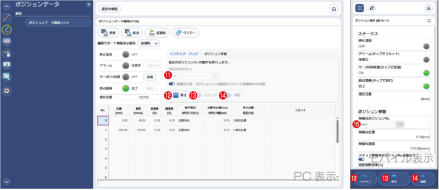
Figure 8.10 Position movement screen
- Speed Limit Ratio
Sets the speed limit ratio for position movement. - Stop Button
Press it to stop position movement. - Step Button
Press if to perform step movement for one position only.
The destination position is selected as follows:
- On a PC: select from the grid
- On a mobile device: select using the destination position number in item 15
- Continuous Button
Press it to perform continuous position movement. - Destination Position No. (Mobile devices only)
Use it to specify the destination position No.